


iPad का स्मार्ट कीबोर्ड काम नहीं कर रहा है? इन आजमाए हुए समाधानों को आजमाएं

The iPad Smart Keyboard is a convenient accessory that makes typing, writing emails, and working on documents much easier. However, like other hardware accessories, it may sometimes stop working as expected. You might find that your iPad does not recognize the keyboard, certain keys are unresponsive, the keyboard suddenly disconnects, or nothing happens when you start typing.
These problems can be frustrating, especially when you rely on your iPad for work or everyday tasks. Fortunately, most Smart Keyboard issues can be resolved with a few simple troubleshooting steps. In this guide, we’ll explore the common reasons why your iPad Smart Keyboard is not working and introduce several effective solutions to help restore its functionality.
1. Why Is My iPad Smart Keyboard Not Working?
Several factors can prevent your iPad Smart Keyboard from functioning properly:
- Dirty Smart Connector: Dust, dirt, or debris on the Smart Connector can interfere with the connection between your iPad and keyboard.
- Loose Connection: The keyboard may not be properly attached or aligned with the iPad.
- Software Glitches: Temporary iPadOS bugs or system errors can prevent the keyboard from being recognized.
- Outdated iPadOS: An outdated operating system may cause compatibility or connection problems.
- Damaged Keyboard: Physical damage, worn connectors, or internal hardware problems may affect keyboard functionality.
- Incorrect Compatibility: Not every Smart Keyboard model works with every iPad. Using an incompatible accessory can result in connection issues.
- System Settings Issues: Certain software settings or configuration problems may interfere with keyboard input.
2. How to Fix iPad Smart Keyboard Not Working?
If your iPad Smart Keyboard is not responding, try the following solutions one by one.
2.1 Check iPad and Keyboard Compatibility
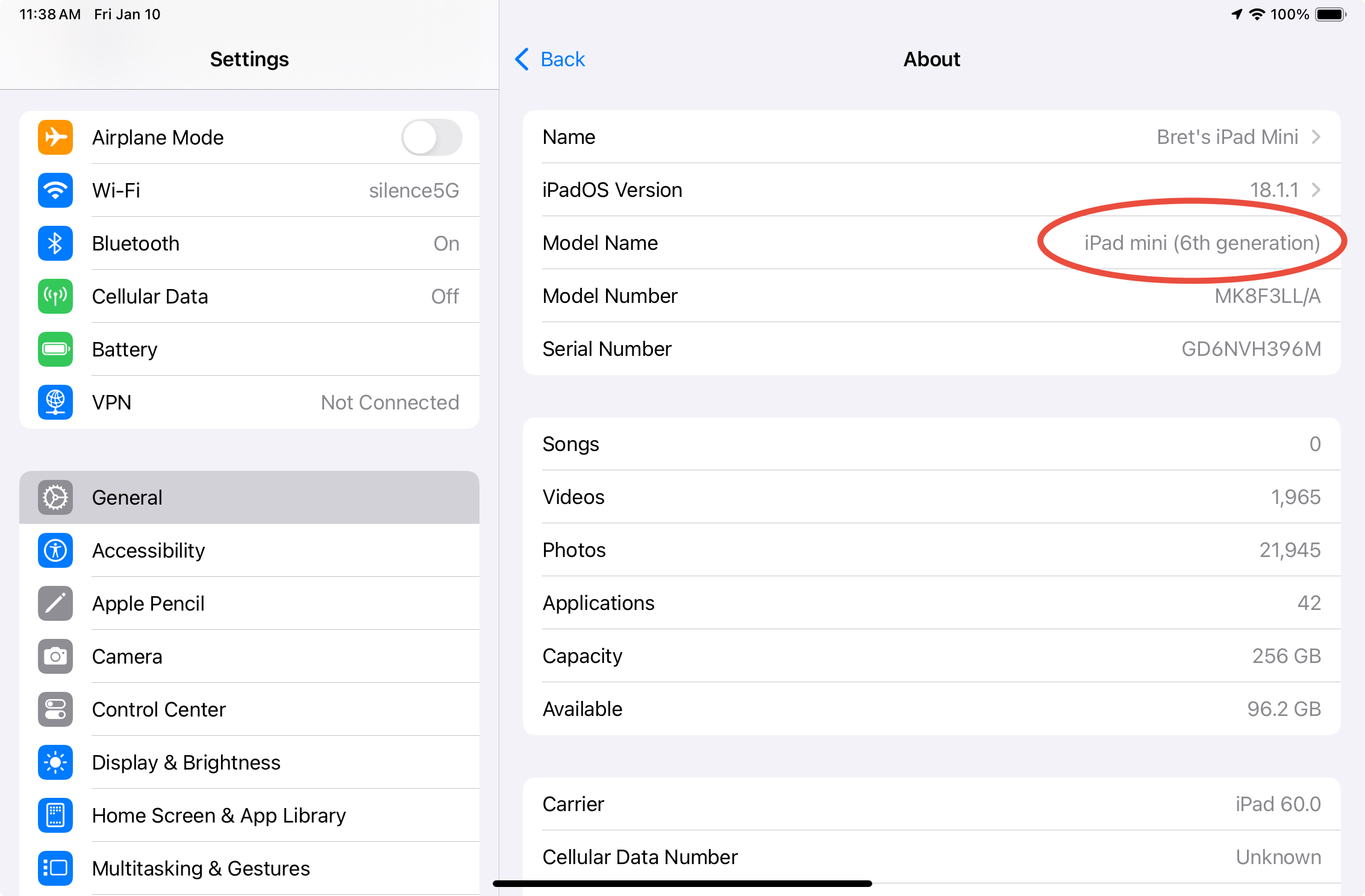
First, check whether your Smart Keyboard is compatible with your iPad model, as Apple offers different keyboard accessories for different generations and sizes. Go to
सेटिंग्स > सामान्य > के बारे में
to find your iPad model, then compare it with Apple’s official compatibility list. If your keyboard isn’t supported, consider switching to a compatible accessory.
2.2 Disconnect and Reconnect the Smart Keyboard
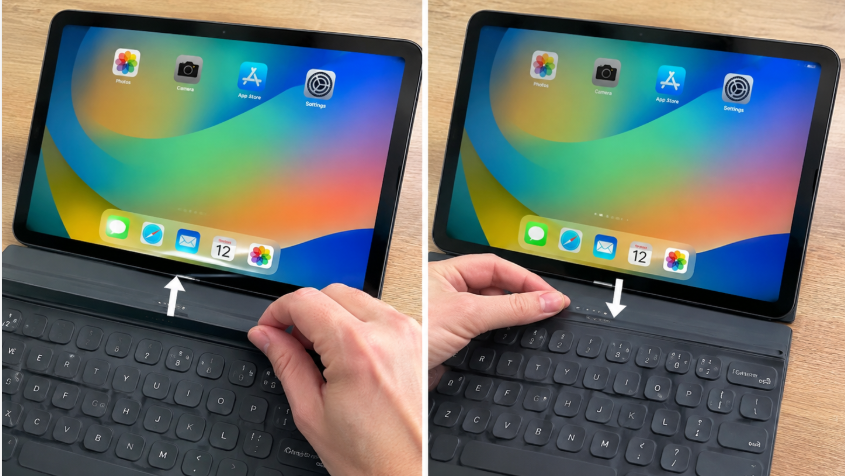
Detach your Smart Keyboard from the iPad and wait 10–15 seconds before reconnecting it. Make sure the Smart Connector is properly aligned and the keyboard is securely attached. Then open a text editor and test whether it works. This can help resolve temporary connection issues without changing any settings.
2.3 Clean the Smart Connector
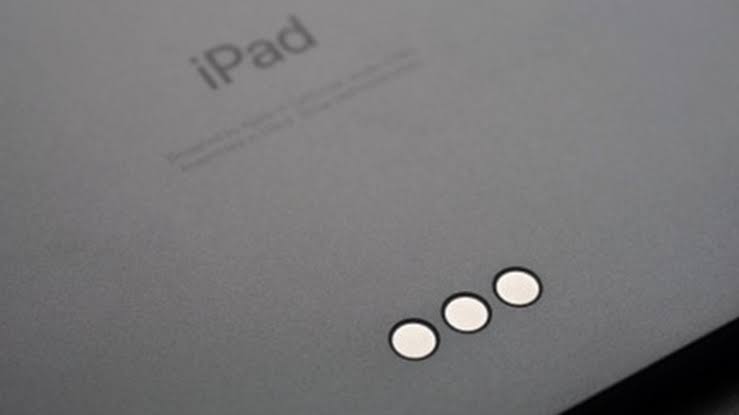
Dust and debris on the Smart Connector can interfere with the connection between your iPad and Smart Keyboard. Detach the keyboard and gently clean the three connector contacts on both devices using a soft, lint-free cloth. Avoid liquids or sharp objects to prevent damage. Once clean and dry, reconnect the keyboard and test it again.
2.4 Restart Your iPad
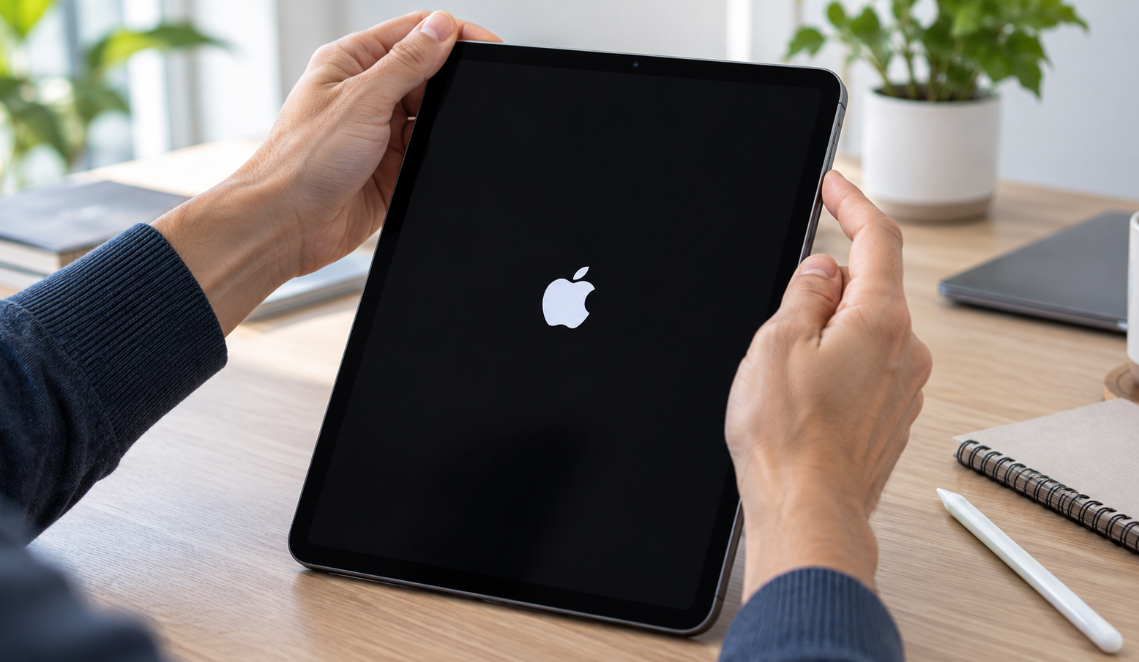
Temporary software glitches may prevent your iPad from recognizing the Smart Keyboard. Restarting can refresh system processes and fix minor issues. Press and hold the appropriate power and volume buttons (or the top button on models with a Home button) until the power-off slider appears. Turn off your iPad, wait a few seconds, and turn it back on. Then reconnect the keyboard and test it again.
2.5 Update iPadOS to the Latest Version
An outdated iPadOS version may cause bugs that affect keyboard recognition and connectivity. Navigate to Settings > General > Software Update on your iPad to see if any updates are available. Ensure your iPad has enough battery and a stable internet connection before updating. Afterward, reconnect your Smart Keyboard and check whether it works.

2.6 Check Keyboard Settings
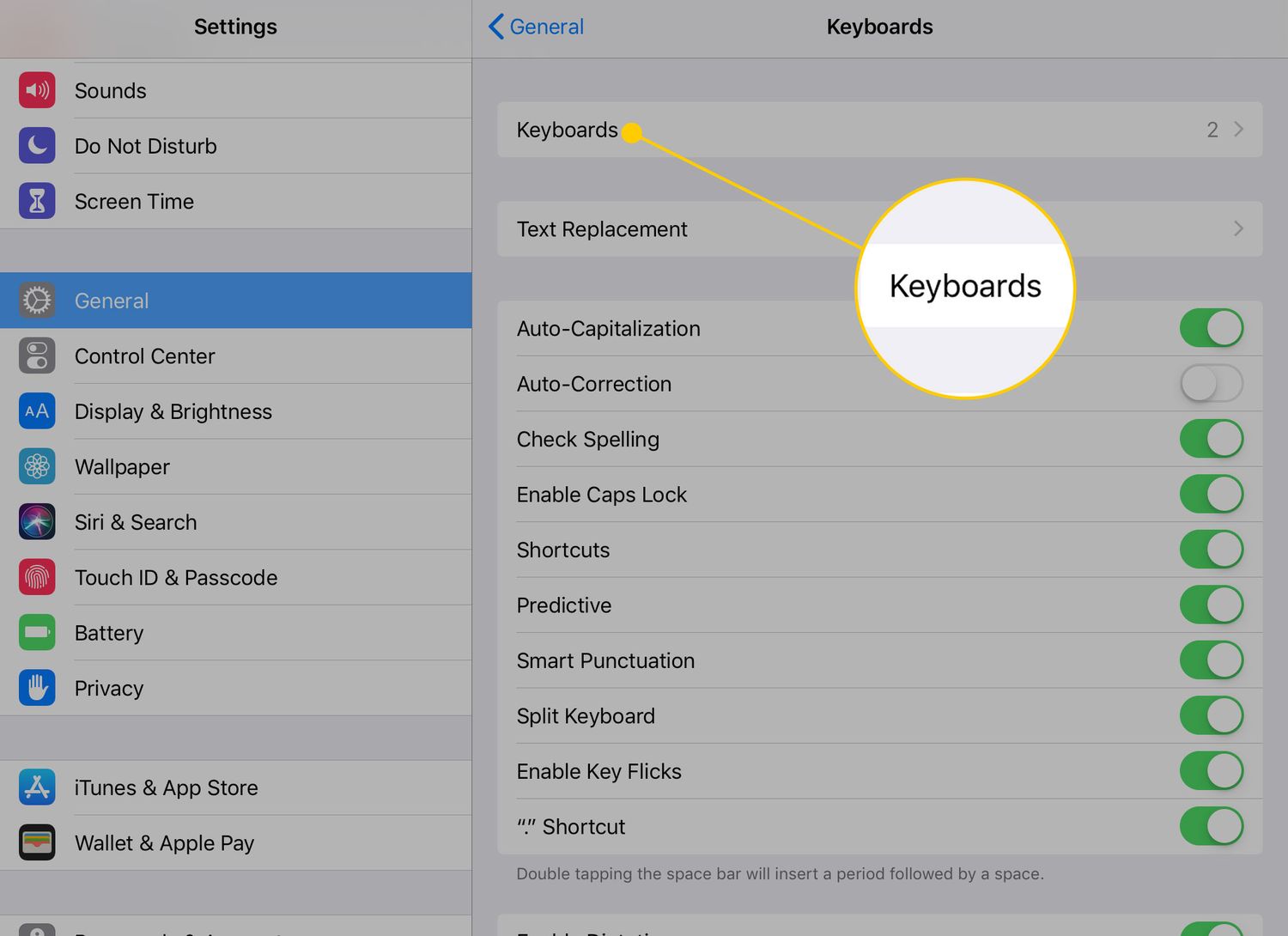
If your Smart Keyboard connects but doesn’t type properly, go to Settings > General > Keyboard and review the available settings for any unexpected changes. Also, test the keyboard in different apps to see whether the issue is app-specific. If only certain keys fail to respond, the keyboard itself may be faulty.
2.7 Reset All Settings on Your iPad
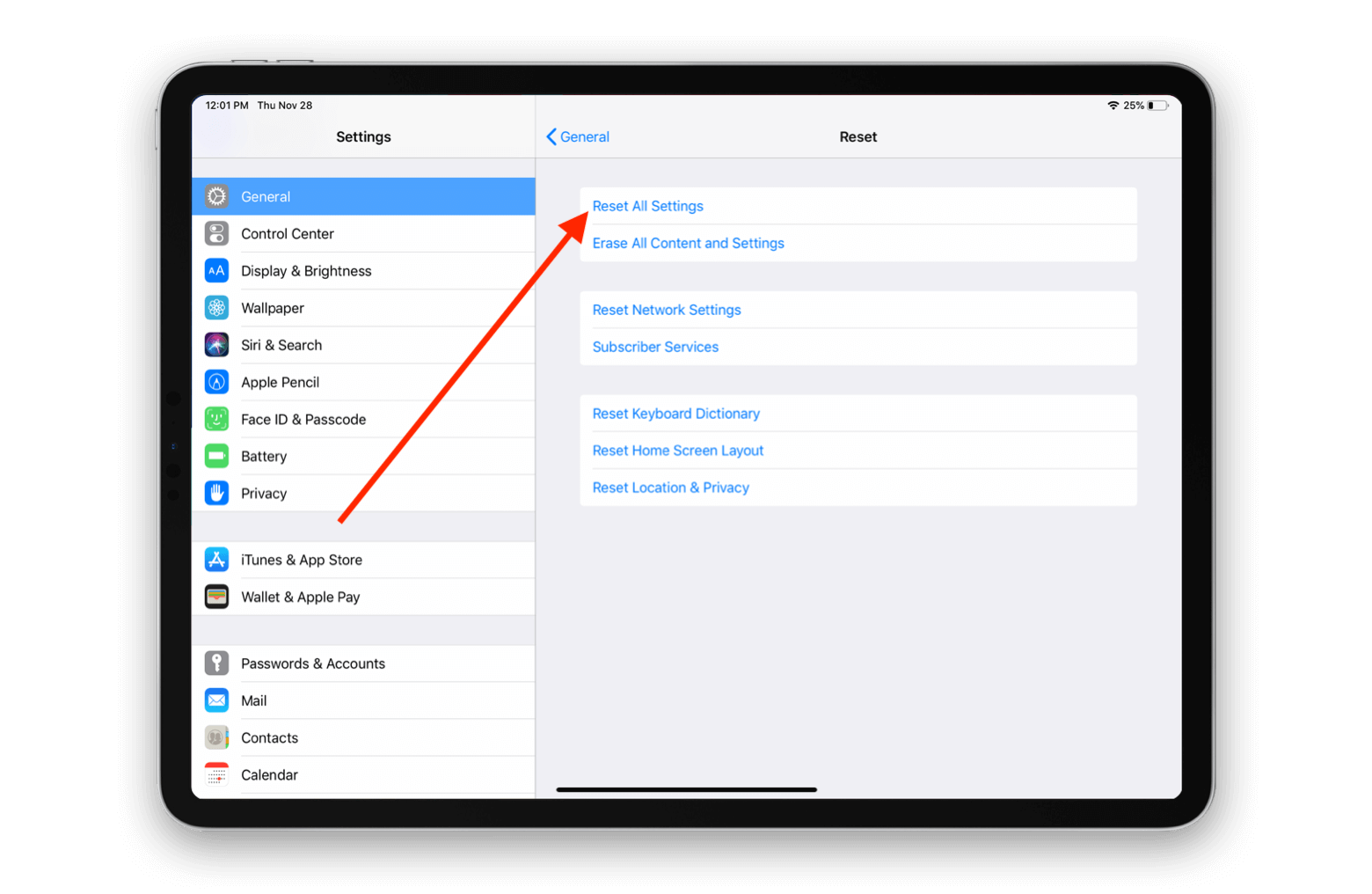
If your Smart Keyboard still doesn’t work, incorrect system configurations may be causing the issue. Go to Settings > General > Transfer or Reset iPad > Reset > Reset All Settings and confirm the action with your passcode if prompted. This restores default system settings, including network and keyboard preferences, without deleting your photos, apps, or personal files.
3. Bonus: Advanced Fix for iPad Smart Keyboard Not Working with AimerLab FixMate
If your iPad Smart Keyboard still does not work after trying the basic troubleshooting methods, the problem may be related to deeper iPadOS system issues. For example, corrupted system files, failed updates, or persistent software glitches can interfere with normal device functions.
In this situation, you can consider using
ऐमेरलैब फिक्समेट
, an iOS system repair tool designed to help resolve various iPhone and iPad software problems.
Key features of AimerLab FixMate include:
- Resolve 150+ system bugs, frozen screens, recovery mode problems, update errors, and more.
- Enter or exit Recovery Mode with one click for free.
- Choose Standard Repair for common issues or Deep Repair for more serious problems.
- Available for both Windows and Mac.
How to use AimerLab FixMate to repair your iPad:
- Download FixMate for Windows or Mac, then install and launch the program.
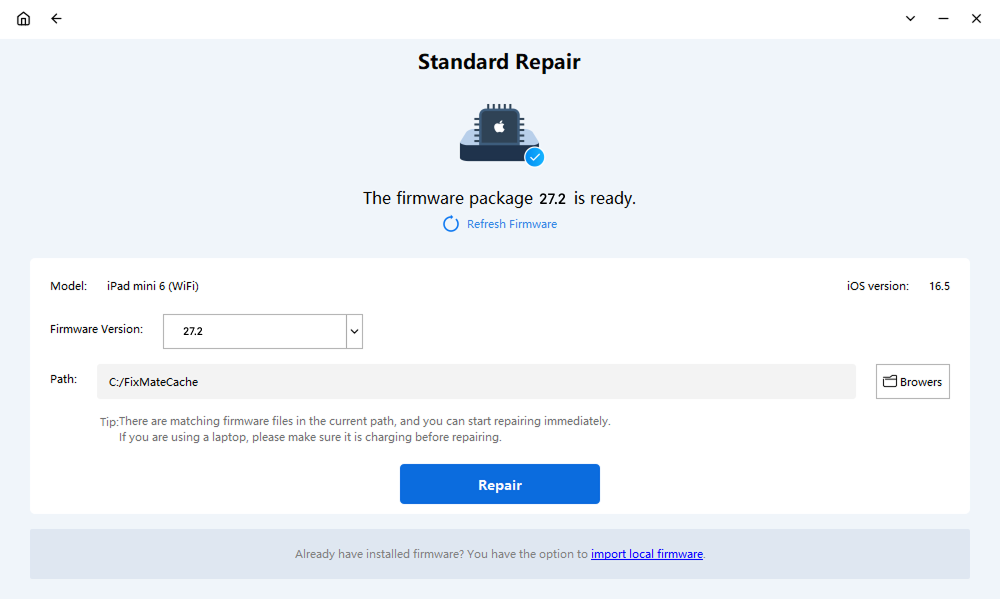
- Connect your iPad to the computer using a USB cable, then find and choose the Standard Repair option to continue.
- Follow the on-screen instructions to download the appropriate firmware package for your iPad.
- Once the firmware is ready, click the repair option and allow FixMate to complete the process.
- After your iPad restarts, reconnect the Smart Keyboard and check whether the problem has been resolved.
4। निष्कर्ष
An iPad Smart Keyboard that stops working can make everyday tasks inconvenient, but the problem is not necessarily caused by hardware damage. Checking compatibility, reconnecting the keyboard, cleaning the Smart Connector, restarting your iPad, and updating iPadOS can often restore normal functionality.
If these basic solutions fail, persistent iPadOS problems may require a more advanced repair approach. In that case,
ऐमेरलैब फिक्समेट
is worth trying. Its system repair modes provide another way to troubleshoot software-related iPad issues and restore normal device operation. With its simple interface and repair options,
फिक्समेट
can be a useful tool when your iPad Smart Keyboard continues to malfunction.
- iPhone में आने वाली त्रुटि 1110 को कैसे ठीक करें?
- “Waiting for Other iPhone” समस्या को कैसे ठीक करें?
- iOS 26 डाउनलोड होने में लगने वाले अत्यधिक समय को कैसे ठीक करें?
- iPhone पर अक्सर देखी जाने वाली जगहों को कैसे देखें?
- iOS 26 इतना धीमा क्यों है?
- आपके iPhone के पासकोड को सत्यापित करने में त्रुटि आने की समस्या को कैसे ठीक करें?